Android Phones Without Google: A One-Way Trip on a Moto G7

9 de sep. de 2025 — Soldan
The phone is such an opaque device that we forget it's also a computer. And while it doesn't have the perks of a PC (we can't upgrade the hardware or change the software as easily), there are ways to modify the Android that comes from the factory. The benefits are significant, but you'll have to put in some work -- there's no way around it.
Why use Android phones without Google
Ever since Android came out in 2008, the hacker community found ways to modify those sealed boxes we call phones. A lot of silicon has flowed under the smartphone bridge, and today there are endless possibilities. But why would you want to change stock Android? There are plenty of reasons.
For starters, to extend the device's lifespan so you don't have to replace it just because. Then, for performance reasons. The Android we receive comes loaded with Google apps plus the manufacturer's skin, and it may even include apps from the carrier. If we install an alternative system, we don't have all that bloatware by default. And without all that junk, not only does our phone run more smoothly, but it also won't be tracking absolutely everything we do. Because even the keyboard you use on Android is logging every keystroke to sell it to the merchants of attention.
In common jargon, these alternative Androids are known as custom ROMs -- versions of the system built by the community. Personally, I think the correct way to refer to them would be "Android distributions," to say what they actually are: builds based on Android OpenSource Project code that Google releases. Within that vast universe, we have very serious and well-established projects like LineageOS, GrapheneOS, iode, and /e/OS, which is the one we'll discuss and explain how to install.
Obviously, we don't recommend in any way using an Android distribution of dubious origin, especially if you're going to log into your email, bank account, and sensitive data. Remember that for those purposes, you should always stick to reliable distributions like the ones mentioned above.
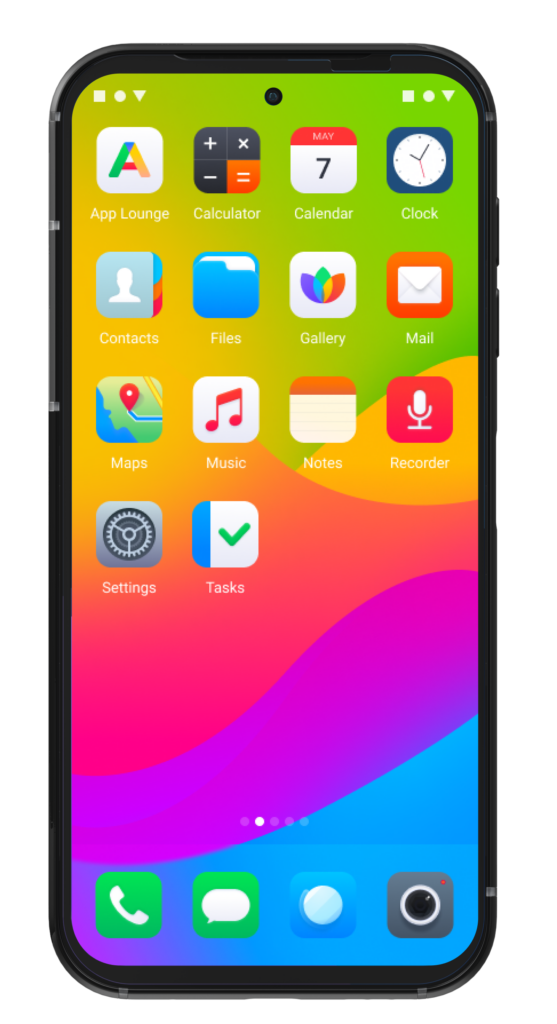
/e/OS, a de-Googled Android
Murena is a European company and foundation dedicated to developing /e/OS, an Android distribution based on LineageOS (which would be like the Debian of Androids). It also sells devices like the Fairphone, a modular, repairable Dutch phone with 8 years of support, built with recycled materials and free of blood-stained cobalt. The premise behind /e/OS is simple: to create an Android that doesn't include anything from Google by default but still lets you maintain your digital life. We've already mentioned this: you don't need to have all of Google's apps to still consume their content. On top of that, /e/OS has a strong active community helping out on their forums and Telegram, with Cybercirujas being a representative group of the community in Latin America.
Unlike other distributions, /e/OS comes with some interesting built-in tools. To keep you connected to the Google ecosystem, it includes MicroG, which sounds like a drug, but is actually an open source implementation of Google Play Services. Without this, it's very difficult for many Play Store apps to work, because Google monopolizes everything and it's impossible to log into banking apps or similar services without connecting to their services. MicroG lets us do that without needing to log in with any Gmail account. But if we wanted to, we could.
Now, how do you download Play Store apps if there's nothing from Google? No problem -- hackers always find a way. /e/OS comes with a built-in store called App Lounge, which connects to the Play Store as well as to F-Droid, another repository of free and open source apps. And if App Lounge doesn't work for you, you can always install Aurora Store, which serves the same purpose.
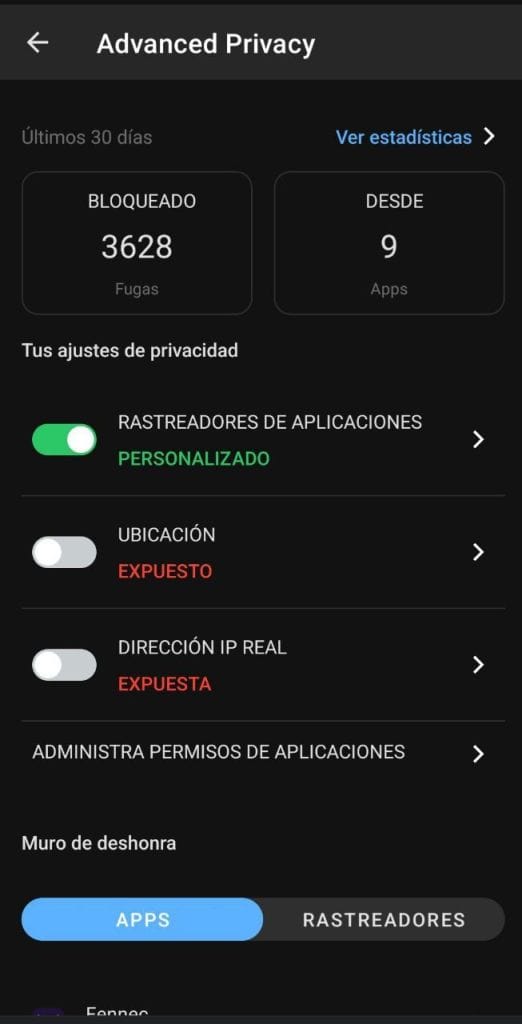
Another important feature of the system is Advanced Privacy, a built-in tracker blocker that detects and blocks all unnecessary intrusions from apps. But it also includes a location spoofer so your reported location differs from the real one. This pairs very well with a built-in VPN that routes through Tor, allowing us to anonymize our IP address while also protecting the privacy of our geographic location.
How to know if your phone can be de-Googled
The ability to change the Android system depends on several factors, and most of them are beyond what the user can control. The best way to find out if you can change it is by visiting LineageOS or /e/OS and checking if your phone is on the list of supported devices. Another route is to go to the XDA forum and search for the codename. If you find a post saying, for example, "Moto G Peregrine ROM," that's good news. If there's nothing, it means nobody has managed to build an Android distribution for it yet. The reasons are various and very technical, and I don't want to overwhelm you with that.
If you have a smartphone that can't be modified -- or it can, but you don't dare -- there's a middle-ground solution. There's a universal debloat tool -- meaning it removes all the bloatware and unnecessary software. This includes, in most cases, deleting Play Services, the Play Store, everything from Google, everything from the manufacturer, and if present, from the carrier too. This is very useful for generic phones and tablets that come overloaded with junk that hinders their performance. There aren't many downsides to using it, and there's no way to brick the device -- at least according to the dev -- since in the worst case, the phone will just reboot to factory mode. Once all the garbage is gone, you can install stores like F-Droid or Aurora Store.
Moto G7: ideal phones for de-Googling
Launched in 2019, the Motorola G7 family turned out to be an extremely popular phone line in our country, with four models: G7, G7 Play, G7 Plus, and G7 Power. Today, these phones go for around 40,000 to 60,000 pesos on Marketplace, depending on condition and your bargaining skills. Unfortunately, due to planned obsolescence, they stopped receiving updates and died on Android 10.
In a different scenario -- that of our beloved PCs -- it wouldn't be a problem: you grab a USB drive, install Linux or another compatible system, and goodbye obsolescence. With phones it's more complex, but not impossible. And we specifically mention these Motorolas because there are many alternatives for freeing them from Google and reviving a total beast like the G7. Manufacturers put up barriers to prevent us from doing it, and this procedure varies by brand, but we also chose Motorola because it applies to all their phones (at least for now). That said, we recommend doing this on a device that isn't your current daily phone. Find one that isn't in use. It's hard to mess it up, but it can happen.
How to install /e/OS on a Moto G7
With the phone turned on, go to Settings / About Phone and tap 7 or 8 times on Build Number until it says Developer options enabled. Go back in the menu and you'll find the Developer Options now enabled. Enter that menu and enable USB Debugging. Then you'll need to turn off the phone and boot it by pressing the following key combination: power button + volume down for 7-8 seconds, then release. It should boot to a screen like this:
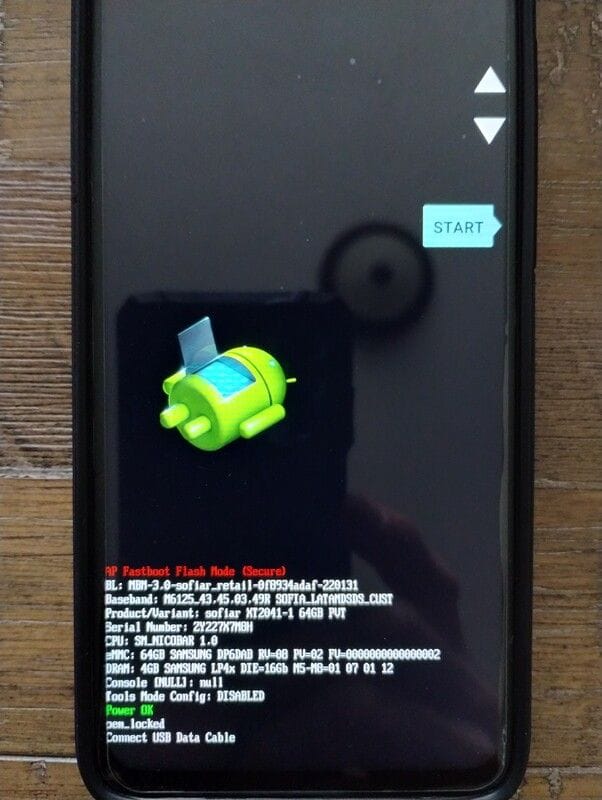
Now you'll need a PC with a data USB cable, Motorola drivers, and the adb package installed. On Linux it's very straightforward -- just install adb and fastboot and you're good to go. On Windows, you can check here for adb and here for Motorola drivers. What we'll attempt is to unlock the bootloader. Just as PCs have a BIOS, phones -- roughly speaking -- have a bootloader that works in a similar way. So, with those packages installed and the USB cable connected to the phone, open a terminal and type the command:
fastboot oem get_unlock_dataIt will return something like this:
(bootloader) 3A51062406994347#54303132353032
     2→(bootloader) 594C55620585431303430000000#8331
     3→(bootloader) 49309365EF9AWRDEDD34FEB435C192D
     4→(bootloader) AADCE#3A47280215092500000000000
     5→(bootloader) 0000000
     6→OKAY [  0.136s]
     7→Finished. Total time: 0.136s
Copy that string into another document, but remove the word bootloader, the parentheses, and the OKAY and Finished lines. You should end up with a single continuous string, like this:
3A5554269494347#54303132353032594C5000585431303430000000#833149309365EF9A13DEDD34FEB461C192OPDDCE#3A472802150000346000000000000000With this code, go to this Motorola page. Log in, either by creating an account or using your Gmail account. It will open another page, and if you scroll down you'll see this dialog box where you need to enter the string from before:
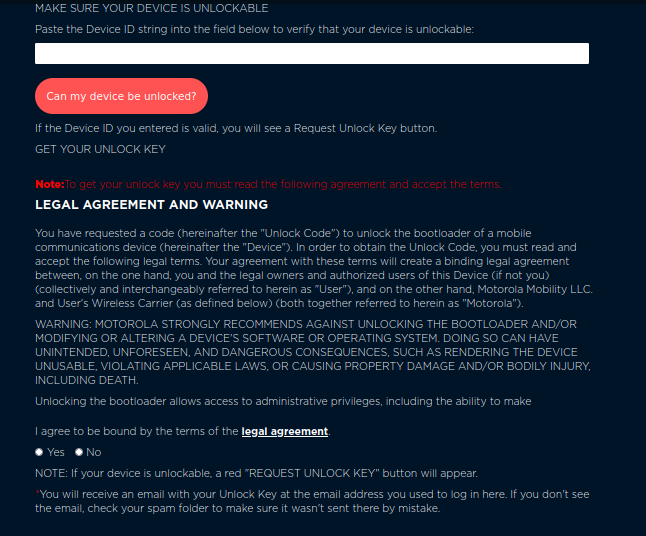
Motorola should then inform you that your phone is eligible for bootloader unlocking. Accept the agreement they ask for, and they'll send you a code by email. Back in the Linux terminal, run:
fastboot oem unlock IDWhere "ID" is the code you received by email. The terminal should return this message:
(bootloader) Unlock completed! Wait to rebootOnce that's done, you need to download a Recovery. The Recovery is a subsystem that runs before the operating system and is used for rescue operations, reinstalling the base system, and factory resets. All phones come with one, but the manufacturer's Recovery doesn't work for changing Android. Once you unlock the bootloader, you'll be able to install a different Recovery. For a standard Moto G7, download this recovery. Finally, you need to download the /e/OS image for this model, which will let you upgrade it to Android 14 (and over the following months, to Android 15).
Once that's done, with the device connected via USB and in fastboot command entry mode (that is, once again turning off the phone and booting it with power + volume down for 7-8 seconds), open a terminal positioned in the folder where you downloaded the recovery image, and run:
fastboot flash recovery recovery.img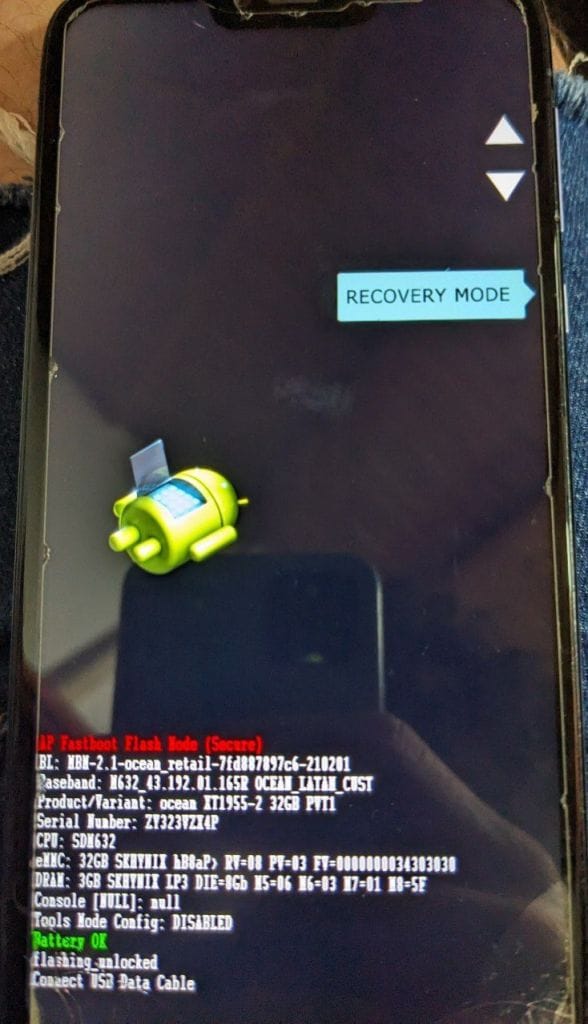
Make sure you check the name of the file you downloaded and replace recovery.img accordingly. Once that's done, with the phone still in fastboot mode, navigate to the Recovery option using the volume down button. Press volume up to enter that option, and you'll see a screen like this:
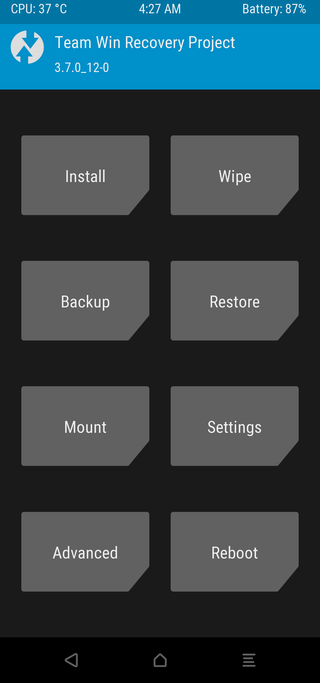
Go to Wipe / Advanced Wipe and check system, data, dalvik/cache, and cache. Then do Swipe to Wipe and wait for it to finish. When it's done, go back until you reach the first screen. Tap on Advanced / ADB Sideload (some checkboxes will appear, but don't check any of them). Swipe down and the phone will wait for us to send files. Go back to the Linux terminal and run the following command:
adb sideload nombre-del-android.zipIn our case, the Android to install is e-3.0.4-a14-20250708507532-community-lake.zip. Hit enter and it will start flashing the system. When it's done, select the Reboot option. It will warn you that there's no system installed, but ignore that -- because you know perfectly well that you just installed a phone operating system without Google's junk.
Congratulations! You and your phone have been properly de-Googled.
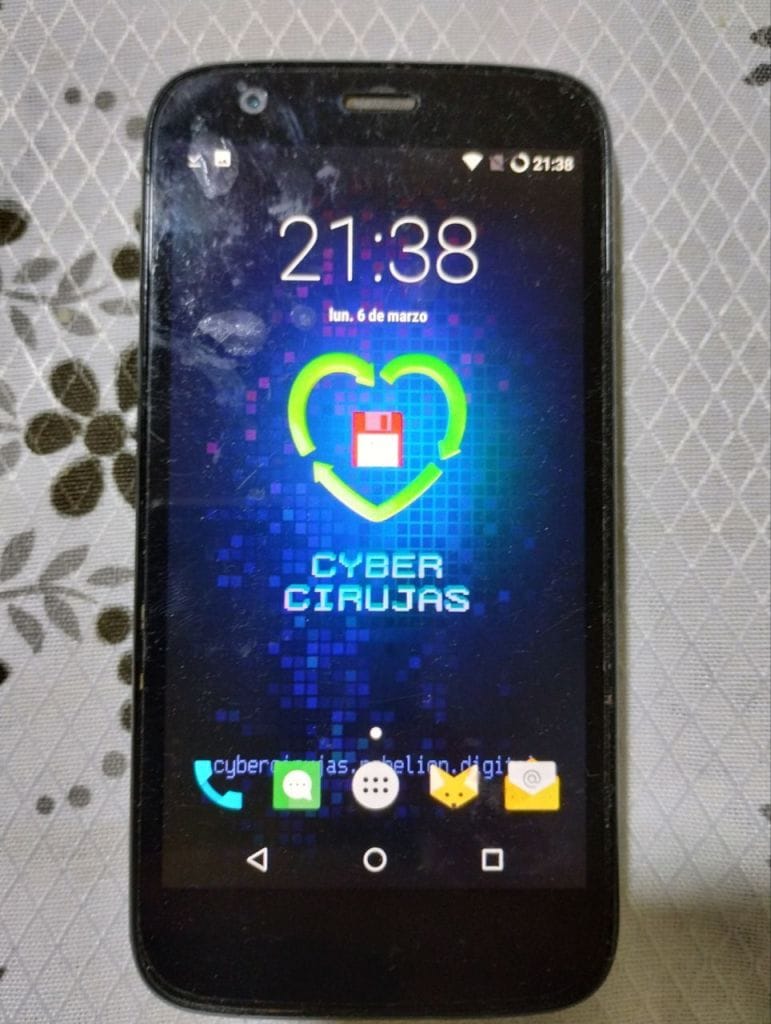
A few things to keep in mind about your recent achievement
It might sound paradoxical that I said /e/OS is designed for regular users and that installing it requires all this engineering. But that's not an /e/OS problem, nor a Lineage problem, nor a problem with any Android project: it's a barrier set up by manufacturers. Nobody wants you to keep using your old phone -- nobody benefits from a phone being usable for 10 years. Yes, 10 years: for example, the Galaxy S7, one hell of a phone, came out in 2016 and with these Android distributions it can still be used with a more up-to-date version and security patches. In fact, although for a very small number of phones, /e/OS offers a web installer that handles the whole process click by click. For the rest, you have to go through all this hacking -- there's no other way.
Now, if you take the plunge and use /e/OS, you'll have to shift your mindset about how you use a phone. Want to keep using your G7? You'll be able to. Want to load it up with Instagram, Twitter, TikTok, and all kinds of heavy apps? You'll be able to do that too, and they'll work -- but what's the point? That ecosystem of apps is precisely part of the problem that makes our mobile devices become obsolete, run slow, and perform poorly. The ideal approach is to keep only the bare essentials -- which for me is WhatsApp.
On the other hand, when you move away from stock Android, one of the biggest issues is compatibility with certain apps -- some of which are essential today, like banking, digital wallets, and various government apps. With /e/OS I had no issues with any of the banks I use, and in fact I've been reporting how those apps work in the community. Again, the problem here isn't the system but the monopolistic practices Google has gotten us accustomed to. To put it simply, it's like when certain websites only worked on Internet Explorer.
Finally, if this caught your attention and you've mustered enough courage to do it, you'll discover a completely new world. You won't need to always buy a new phone anymore -- you'll realize that by looking for good used models you can stay connected to your digital life. You'll also understand that a phone is a computer, and as such, you can make it do what you want -- not what the manufacturer or software distributor wants. By understanding these processes, you'll also be able to do this on many other phones.
If you have any questions, or if you don't dare go at it alone, keep an eye on what we publish at Cybercirujas, since we periodically hold Android installation workshops. And if you gave it a shot and got stuck or need a hand, reach out via the links in my bio.